iViCAM Basic · Free
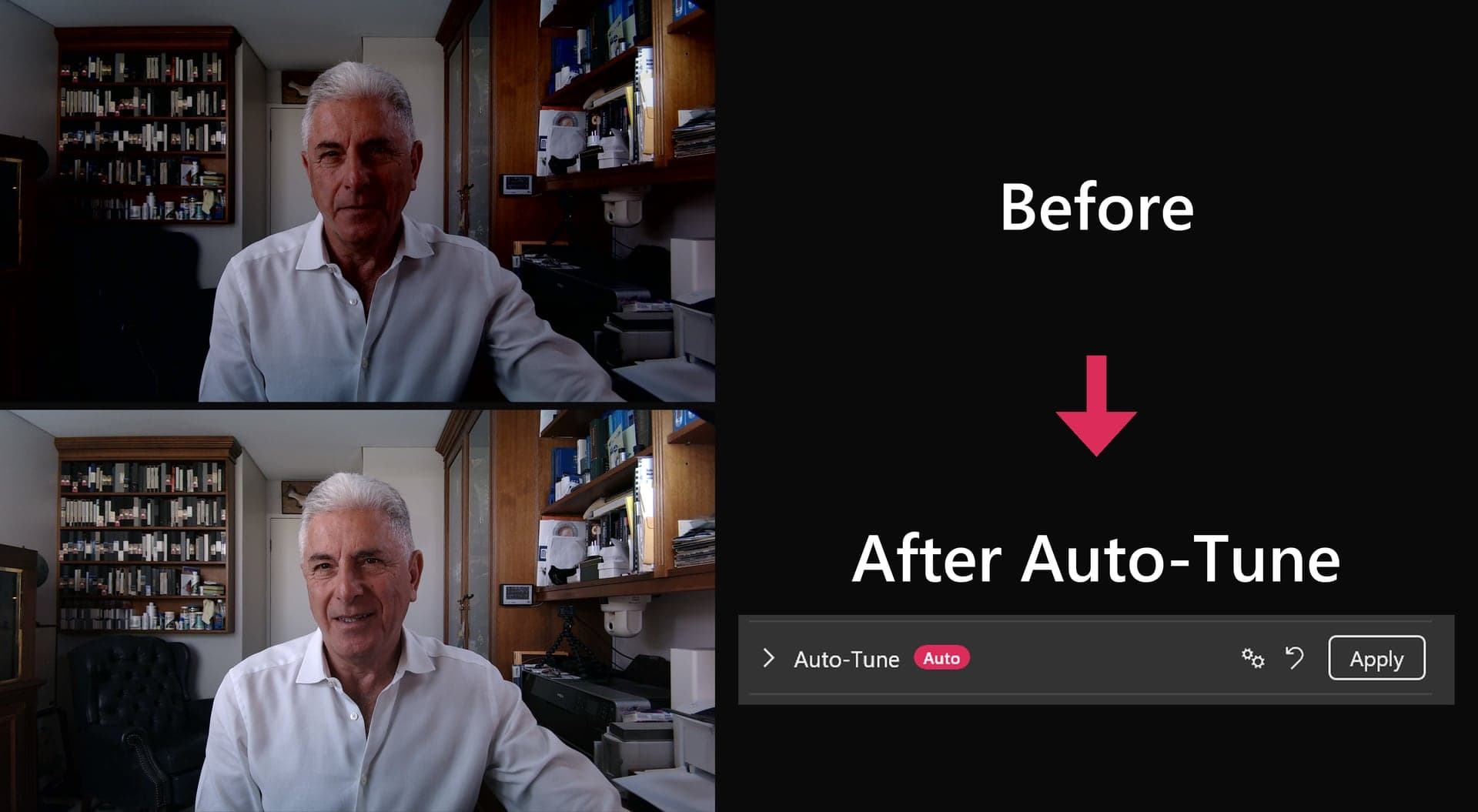
A better picture in one click.
Auto-Tune reads your room and sets light, colour and framing for you. Save the look and use it on every call.
iViCAM Basic
Everything you need, free.
Install the app, choose it as the camera in your meeting app, and look better on your next call.
Works in every meeting app
Pick it as your video source in Zoom, Microsoft Teams, Google Meet, Webex or any other video app.
Frame yourself from your desk
Zoom, pan, tilt and focus from one panel. Set the lighting and remove flicker from room lights.
Auto-Tune
One click measures your room and sets brightness, colour and framing. Train it on your own scenes and it learns the look you like.
Windows 11
Scenes
Save your settings for each place you work, such as the morning office or an evening call, and switch with one click.
Windows 11
Recording and snapshots
Record video or take a still photo, straight from the app.
One-click meeting launch
Start your Zoom, Teams, Meet or Webex meeting from the app, with your picture already set.
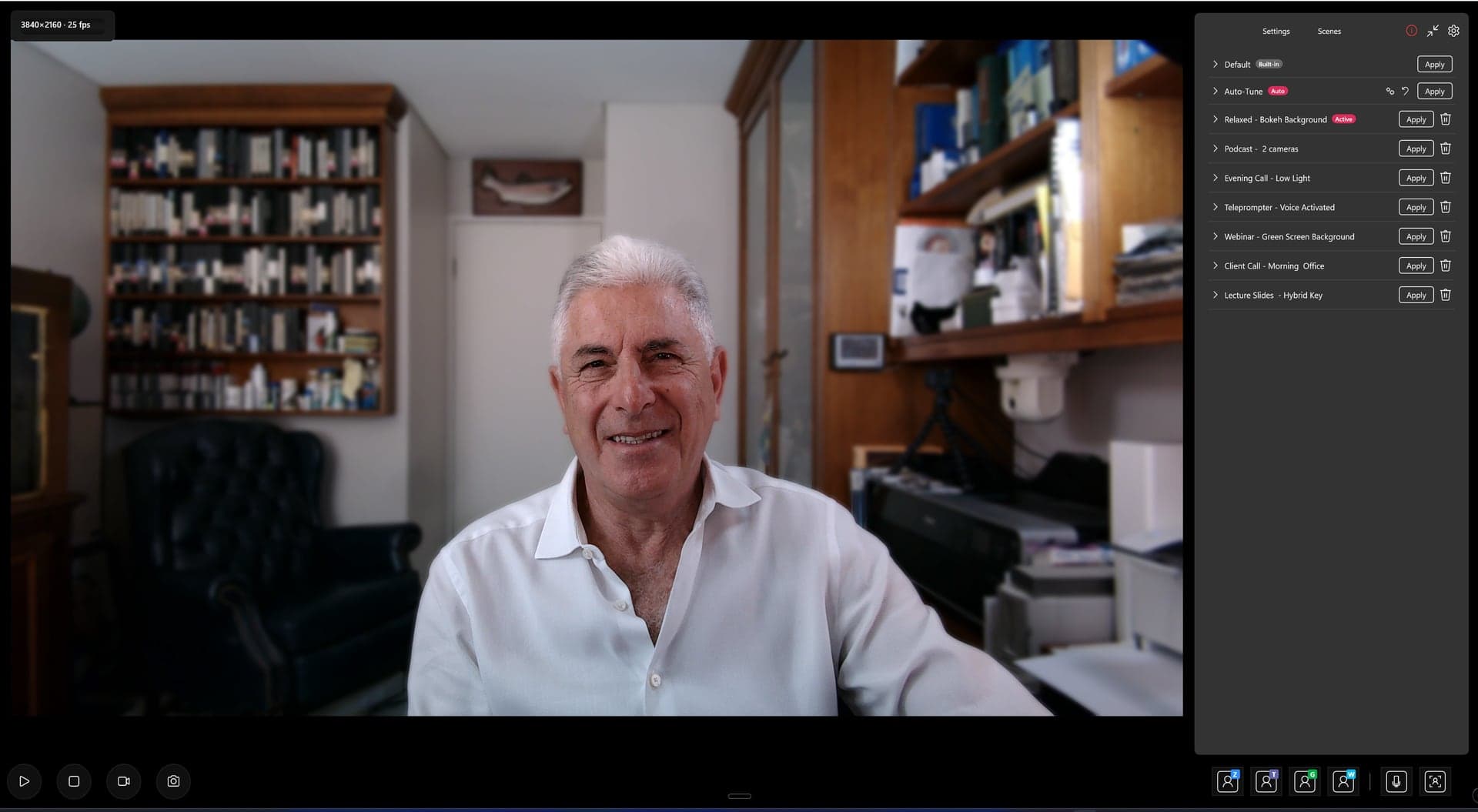
Save a look. Switch in one click.
Set up once for each place you work, save it as a scene, and pick it from the list next time. Auto-Tune does the hard part for you.
Works in:
- Zoom
- Microsoft Teams
- Google Meet
- Webex
- Doxy.me
- SimplePractice Telehealth
Get started
Download for Windows or Mac.
Windows 11
1. Install the Virtual Camera driver
Not sure which? Open Settings > System > About. If System type says ARM-based processor, choose Windows on ARM. Otherwise, choose Intel or AMD. The publisher shown is Lumirah Pty Ltd.
2. Install the app
Mac
For macOS 12 Monterey or later, on Apple Silicon or Intel. iViCAM Pro is for Windows 11.
Then open your meeting app and choose iViCAM as your camera. The user manual explains every feature.
iViCAM Pro
A full video studio, when you want more.
Pro adds studio tools to the same app on Windows 11. Present from inside your slides, read from a teleprompter that follows your voice, and record a studio-quality master.
Six layers.
One live picture.
Every iViCAM Pro picture is built live from six independent layers. Change any one without touching the rest.
A solid colour or a two-colour gradient, at the very back of the frame.
An image, PowerPoint, PDF, Word document, web page, video, or a live window share. Flip the Background to Foreground and it moves in front of you, ideal for see-through graphics.
You, live from the camera. Remove your real background with Chroma Key, Virtual, or Hybrid keying.
Shapes, fills, gradients, reveals, and text that you design and place.
A quick caption that sits above everything on the Canvas.
Point and draw freehand, live, on the very top layer.
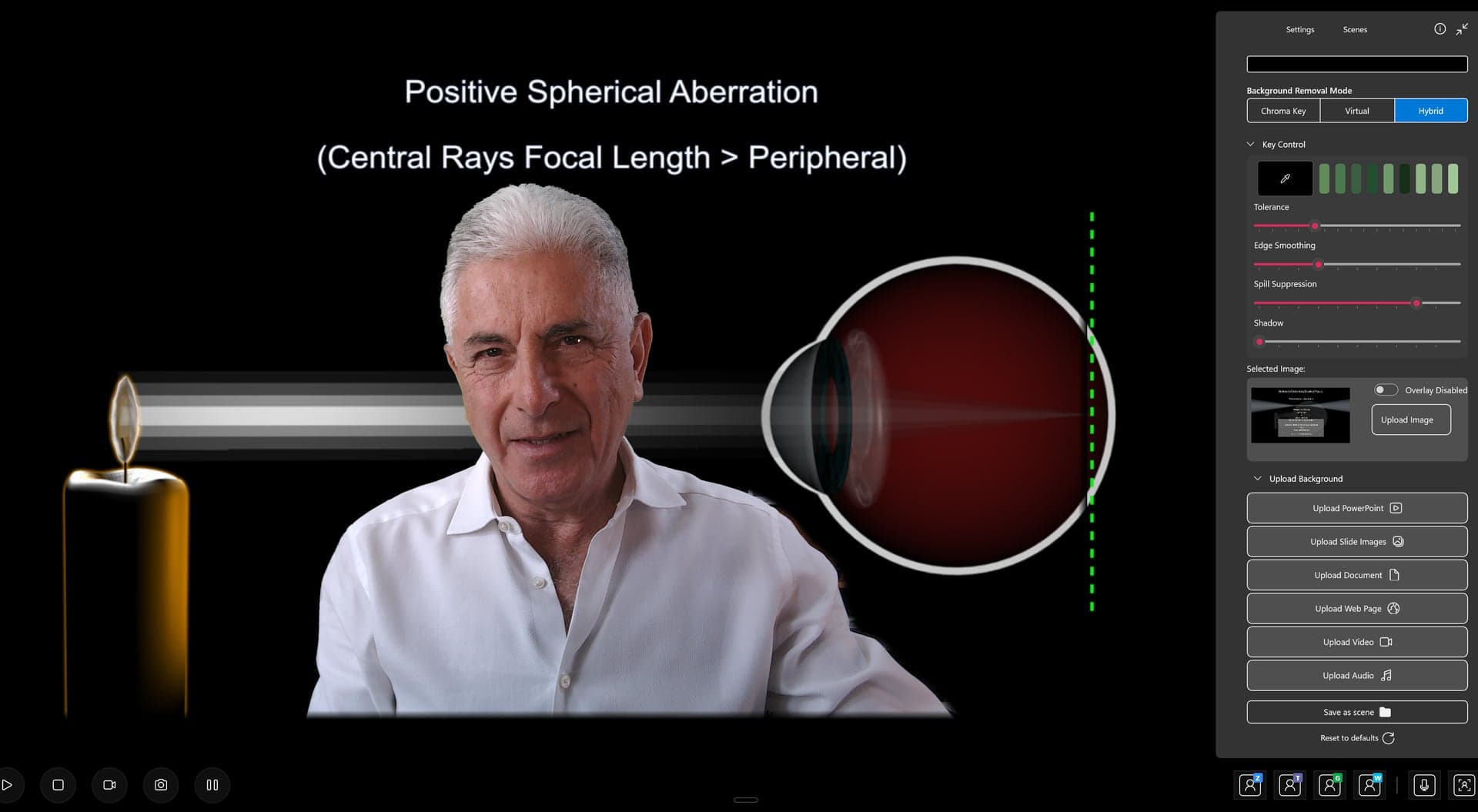
Video FX and keying
Chroma Key for green screens, Virtual for AI background removal without one, and Hybrid for the best of both. Add bokeh blur, gradient backdrops and shaped frames.
Presentations
Put yourself in front of PowerPoint, PDFs, Word documents, web pages, video or a shared window. Advance slides from iViCAM or a presenter remote.
Canvas, text and pen
Design shapes, gradients and reveals, add a live caption, and annotate freehand while you talk.
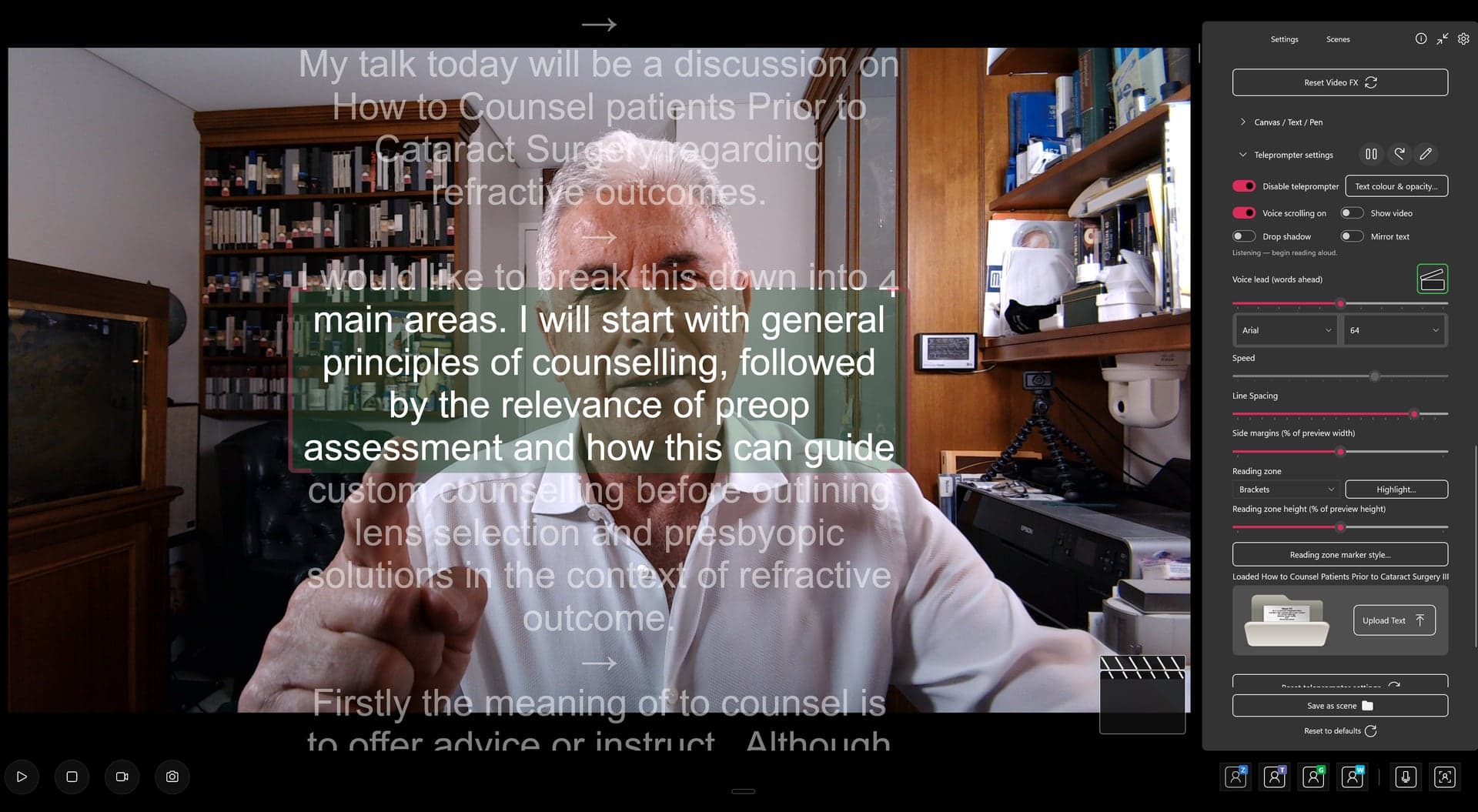
Teleprompter
Voice scrolling follows you as you read, with a countdown, reading zones and adjustable type. Only you see it, never the meeting or the recording.
Multicam
Connect up to four cameras, watch them side by side and click any tile to put it on air.
Studio recording
Record MP4 or ProRes up to 4444 XQ, with extra streams such as a camera alpha matte. Your meeting gets 1080p while you keep the full-resolution master.
Live streaming
Go live to YouTube, Twitch or a custom RTMP destination, from your camera or from a video file.
Audio Production
Shape your recorded voice with presets such as Broadcast voice and Voice + presence, with gain and stereo meters.
Image settings and scopes
Fine-tune exposure, white balance, colour and sharpness, then check skin tones on a vectorscope and waveform parade.
How to unlock Pro
- 1
Install the free app
Download it for Windows 11 above.
- 2
Choose a plan
Monthly, yearly or lifetime. Pay securely through Paddle.
- 3
Get your key
Your licence key shows on screen and arrives by email.
- 4
Enter it in iViCAM
Pro unlocks at once, on up to 2 PCs.
Pricing
Start free. Upgrade when you are ready.
Basic is free on Windows and Mac. Pro is a software licence that unlocks the studio tools on Windows 11: US$15 a month, US$150 a year, or US$450 for a lifetime licence.
iViCAM Basic
Free
For Windows and Mac, with most modern USB webcams.
Download free- Virtual camera for Zoom, Teams, Meet and Webex
- Zoom, pan, tilt, focus, lighting and anti-flicker
- Auto-Tune
- Scenes
- Recording and snapshots
- One-click meeting launch
iViCAM Pro licence
US$150per year
Billed yearly. You get 2 months free compared with monthly.
Software licence for Windows 11.
Lifetime licence, US$450 one-time.
- Everything in Basic
- Image settings and video scopes
- Chroma Key, Virtual and Hybrid keying
- Slides, documents, web pages and screen share
- Canvas, Text Overlay and Pen
- Voice-scrolling teleprompter
- Multicam, streaming and studio recording
- Audio Production
Good to know
- iViCAM Pro is a software licence. Paddle payments cover iViCAM software licences only. They do not cover physical products or hardware bundles.
- Our order process is conducted by our online reseller Paddle.com, who is the merchant of record for all our orders.
- US prices exclude sales tax. In some countries the price includes VAT or GST.
- Your licence key arrives by email. Enter it in iViCAM to unlock Pro.
- Use your licence on up to 2 PCs. Move it to a new PC at any time from the app.
- Pro works offline. iViCAM checks your licence when you are online.
- Cancel any time. Pro stays on until the end of the period you paid for.
- Not happy? Ask for a refund within 30 days of any payment. Refund policy
System requirements
What you need.
- iViCAM Basic
- Windows 11 on an x64 (Intel or AMD) or ARM64 PC, or macOS 12 Monterey or later on Apple Silicon or Intel.
- iViCAM Pro
- iViCAM 2.1 or later on Windows 11, on an x64 or ARM64 PC, with 8 GB RAM and DirectX 11 graphics. 4 GB of video memory recommended. No NPU needed.
- Camera
- Most modern USB webcams. Multicam in Pro uses two or more cameras.
- Internet
- To download the app, and to activate and check a Pro licence. Pro works offline day to day.
FAQ
Questions and answers.
- Is iViCAM Basic really free?
- Yes. Download it from the Microsoft Store or the Mac App Store and use it for as long as you like. No account, no card and no time limit.
- What does iViCAM Pro add?
- Keying and virtual backgrounds, presentations, a teleprompter, multicam, live streaming, studio recording, Audio Production and video scopes. A licence key unlocks them in the same app, on Windows 11.
- What do Paddle payments cover?
- Paddle payments cover iViCAM software licences only. They do not cover physical products or hardware bundles. Paddle.com is our online reseller and the merchant of record for all our orders. Paddle handles payment, sales tax, receipts and refunds.
- Do I need a special camera?
- No. Most modern USB webcams work.
- How do I unlock Pro?
- Buy a licence on this page. Your licence key arrives by email and shows on the confirmation page. Enter it in iViCAM. One licence works on up to 2 PCs.
- Can I cancel or get a refund?
- You can cancel at any time, and Pro stays on until the end of the period you paid for. You can ask for a full refund within 30 days of any payment. See our Refund Policy.
- Does Pro work offline?
- Yes. iViCAM checks your licence when you are online. You do not need a connection to use Pro day to day.
- Does it work on a Mac?
- Yes. iViCAM Basic runs on Mac. iViCAM Pro is for Windows 11.
More questions? Email info@myivi.com.